This article explains how to register the current year's document series and obtain the ATCUD validation codes required to issue invoices in weoInvoice. This procedure is legally mandatory and must be carried out every year with weoInvoice. The available method depends on your subscription plan: automatic communication via Webservice (Exclusive Plus plan) or manual registration through the Portuguese Tax Authority Portal (Business and Exclusive plans).
Method 1: Automatic communication via Webservice (Exclusive Plus plan)
Prerequisites
Before you begin, make sure that:
-
You have the Exclusive Plus plan active on your weoInvoice account.
-
You have access to the Portuguese Tax Authority Portal using your company's credentials.
This method allows you to obtain validation codes directly from weoInvoice, without having to access the Portuguese Tax Authority Portal to register each document type individually. There are two ways to configure access.
Option A: Using the main Portuguese Tax Authority Portal credentials
This is the quickest option. If you prefer not to share the main credentials, please refer to Option B below.
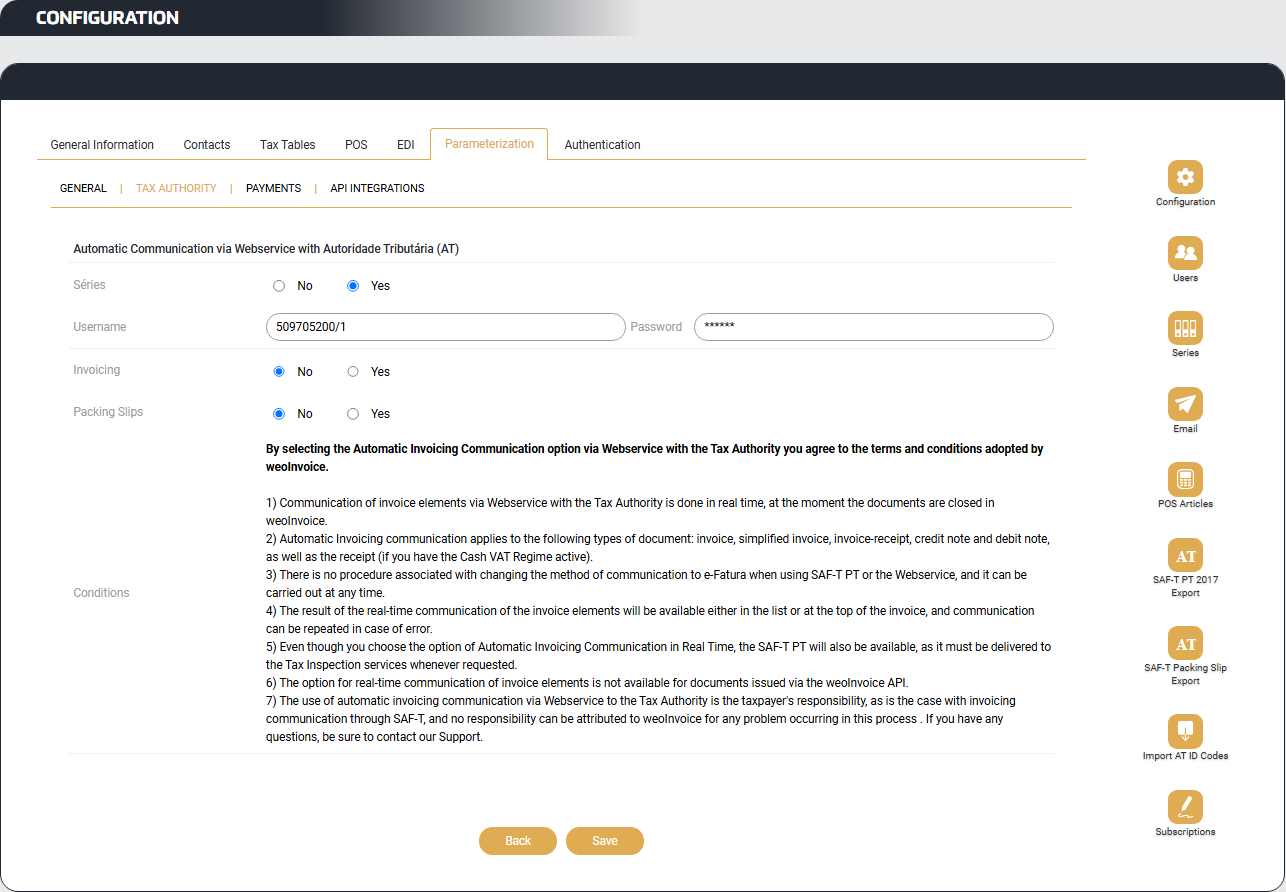
1. In weoInvoice, go to Configuration → Parameterization → Tax Authority.
2. In the Automatic Communication via Webservice with the Portuguese Autoridade Tributária section, enable the Series option by selecting Yes.
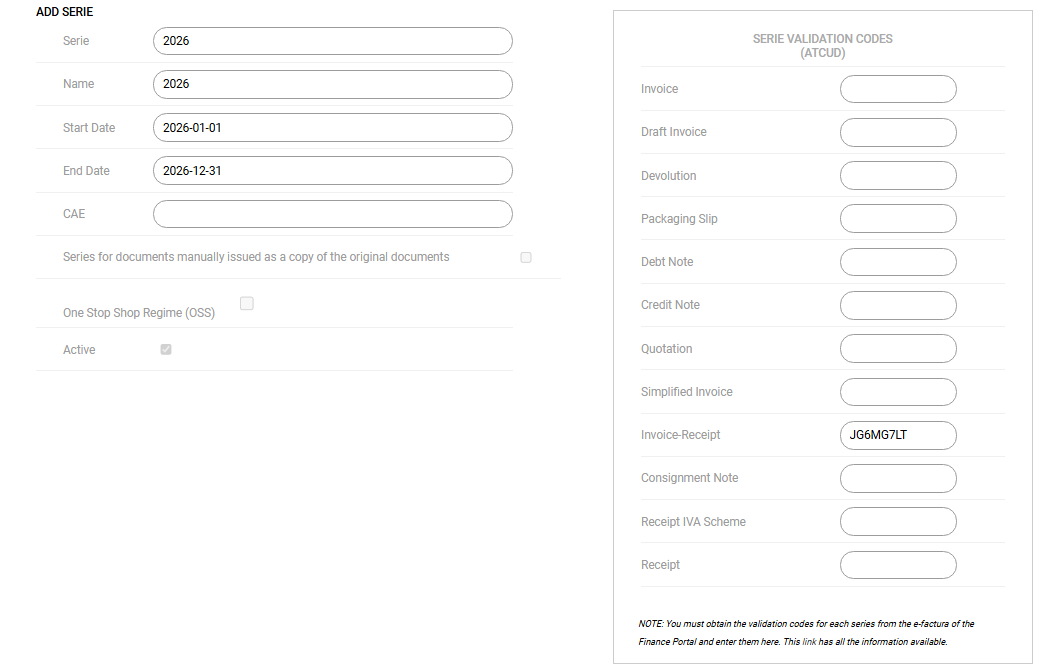
3. Complete the access fields:
- Username: the company's tax identification number.
- Password: the password used to access the Portuguese Tax Authority Portal.
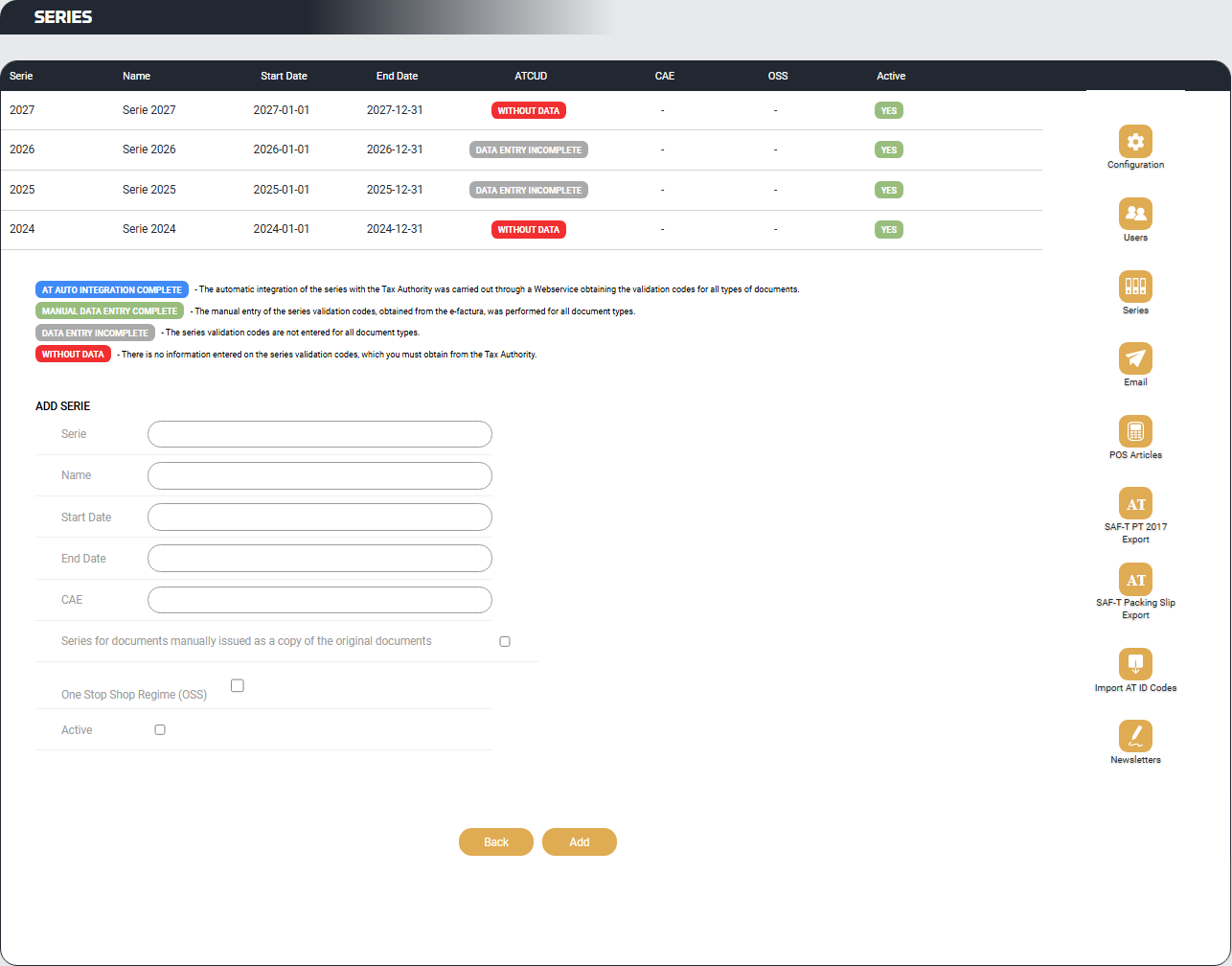
4. Go to Series from the Settings menu.
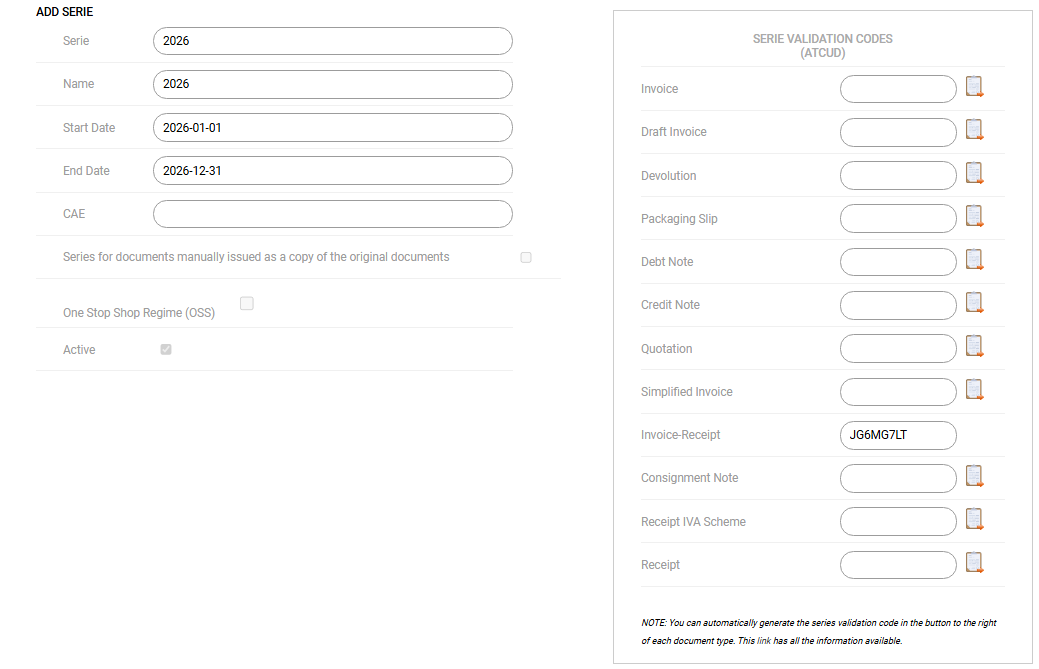
5. Click on the row for the current year's series to view the Series Validation Codes (ATCUD) panel.
6. For each document type, click the clipboard icon next to the corresponding field. weoInvoice will communicate the registration to the Portuguese Tax Authority and retrieve the validation code, automatically filling in the appropriate field.
7. Repeat the previous step for all document types you need to issue.
8. Save the series.
Option B: Using a dedicated Webservice user
If you prefer not to use the taxpayer's main credentials, you can create a dedicated user in the Portuguese Tax Authority Portal with permissions specifically for this operation.
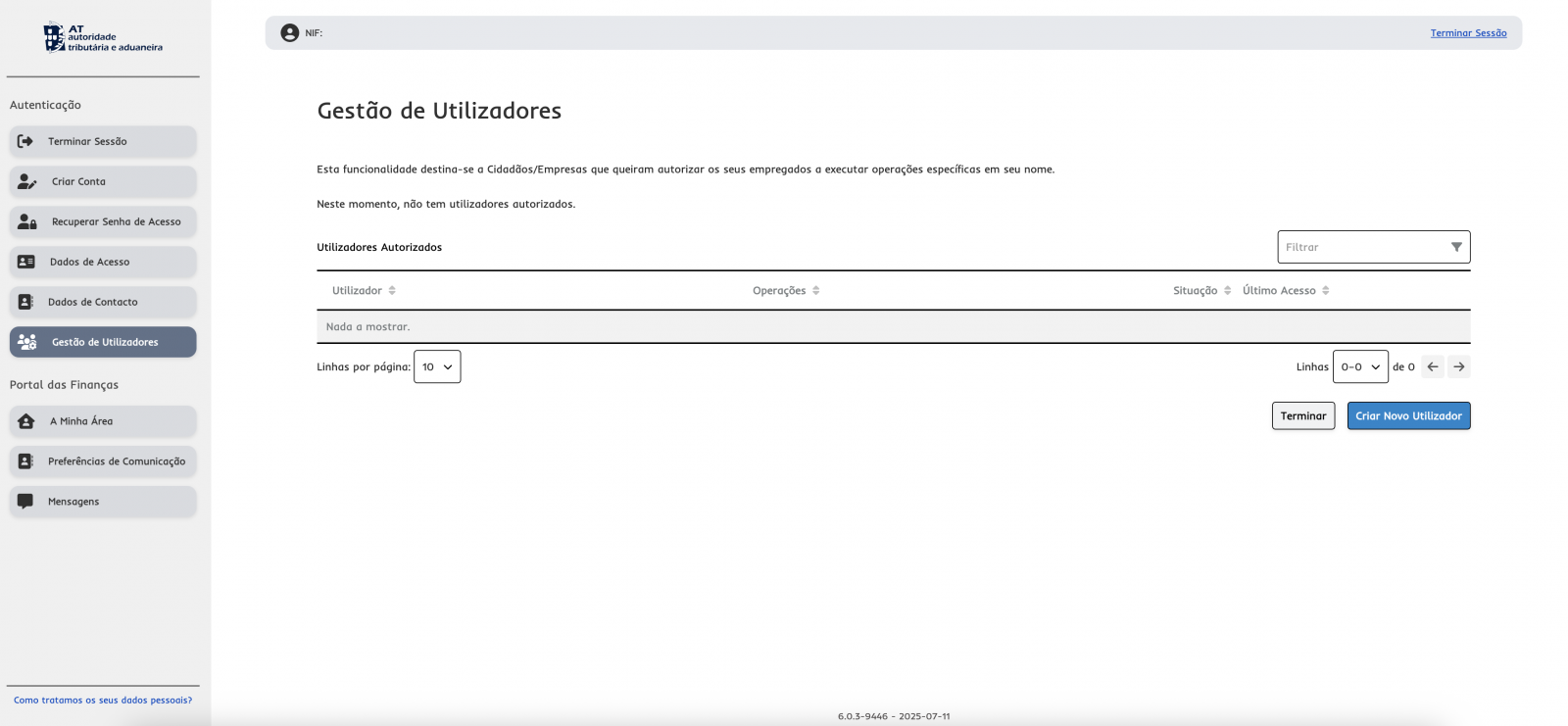
1. Access the Portuguese Tax Authority Portal and log in.
3. Click Create New User.
4. Fill in the required fields:
- Username: the company's tax identification number.
- Name: the taxpayer number followed by a slash and sequence number (example: 509705200/1).
- Password and Confirm Password.
- Email.
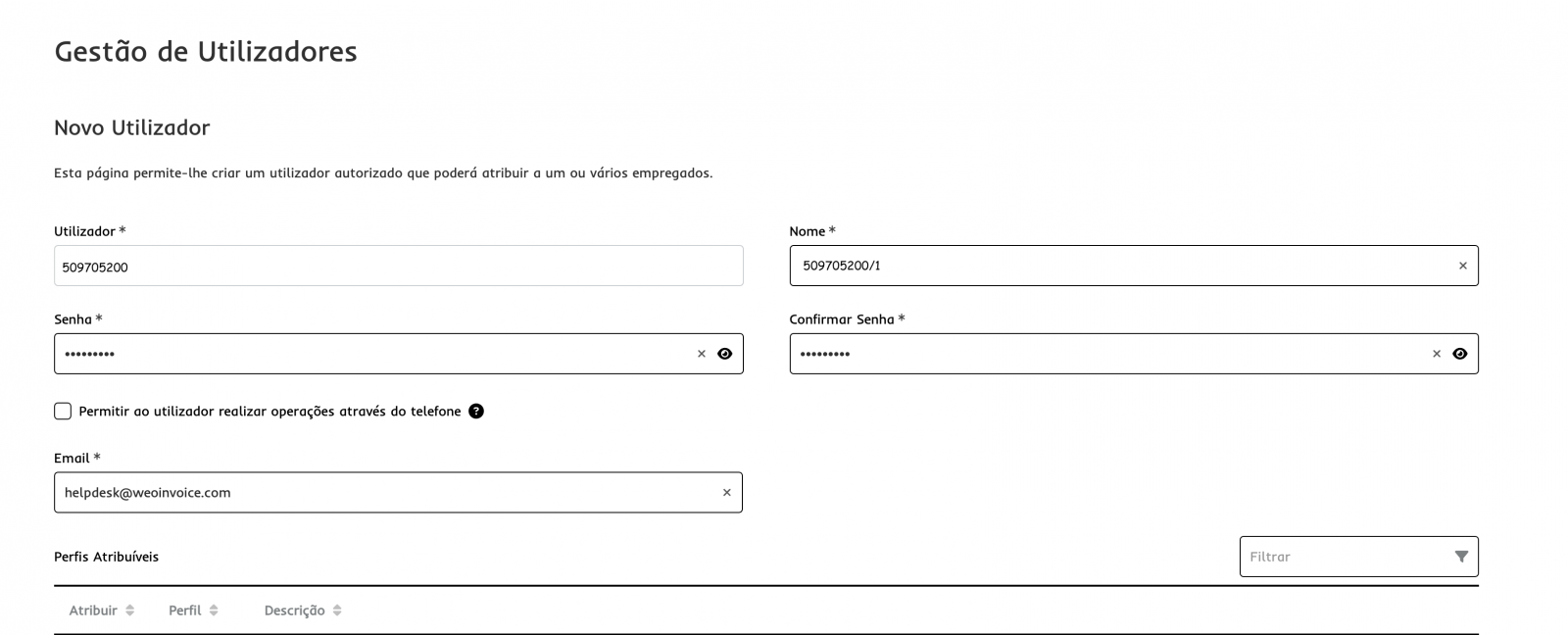
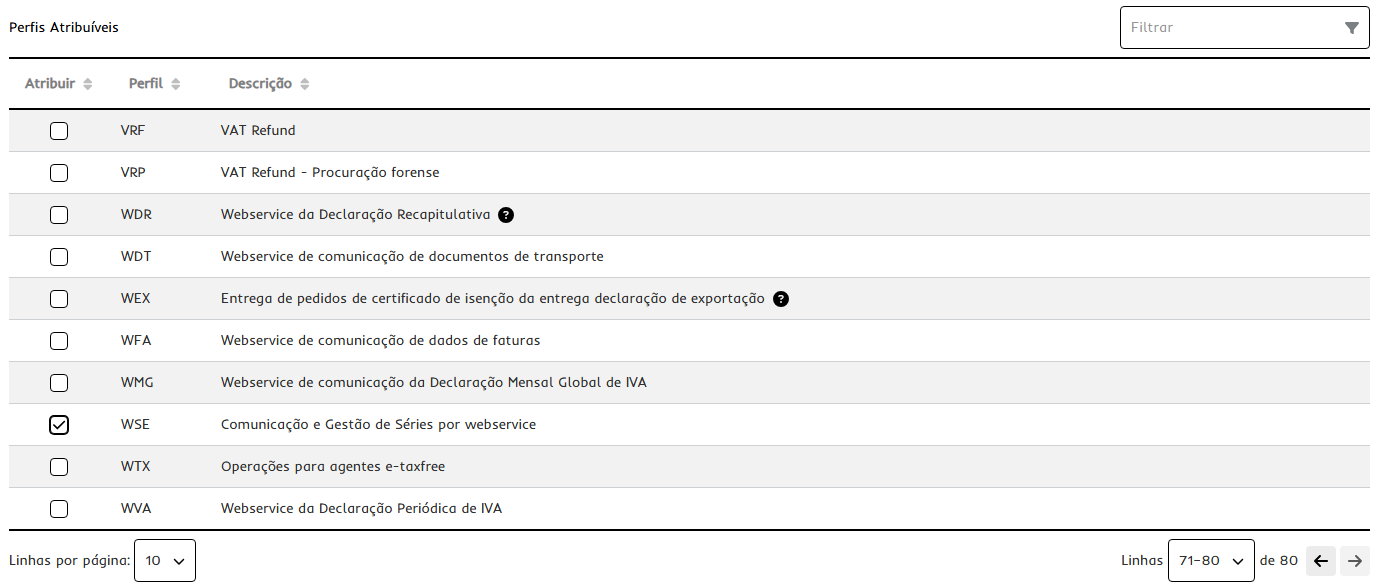
5. In the Assignable Profiles section, select the WSE profile (Series Communication and Management via Webservice).
6. Click Create User.
7. Back in weoInvoice, follow the steps described in Option A (steps 1 to 8), using the username and password of the user you have just created in the Portuguese Tax Authority Portal.
Method 2: Manual registration through the Portuguese Tax Authority Portal (Business and Exclusive plans)
Prerequisites
Before you begin, make sure that:
-
You have access to the Portuguese Tax Authority Portal using your company's credentials.
-
The current year's series has already been created in your weoInvoice account.
Part A: Register the series in the Portuguese Tax Authority Portal
1. Access the Portuguese Tax Authority Portal using your company credentials.
2. Search for Document Series.
3. Select Document Series Communication.
4. Under Economic Operator, select Communicate My Series.
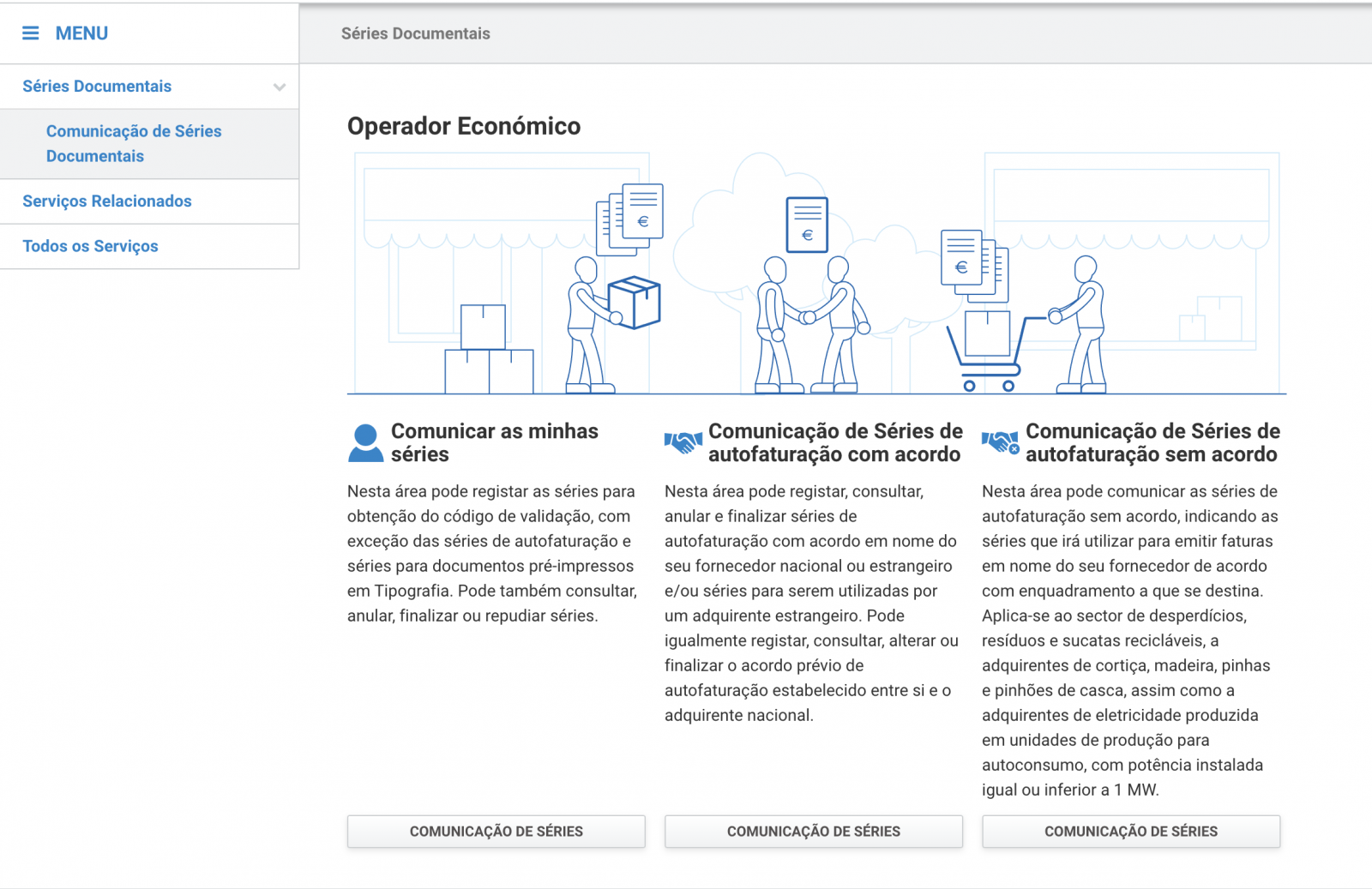
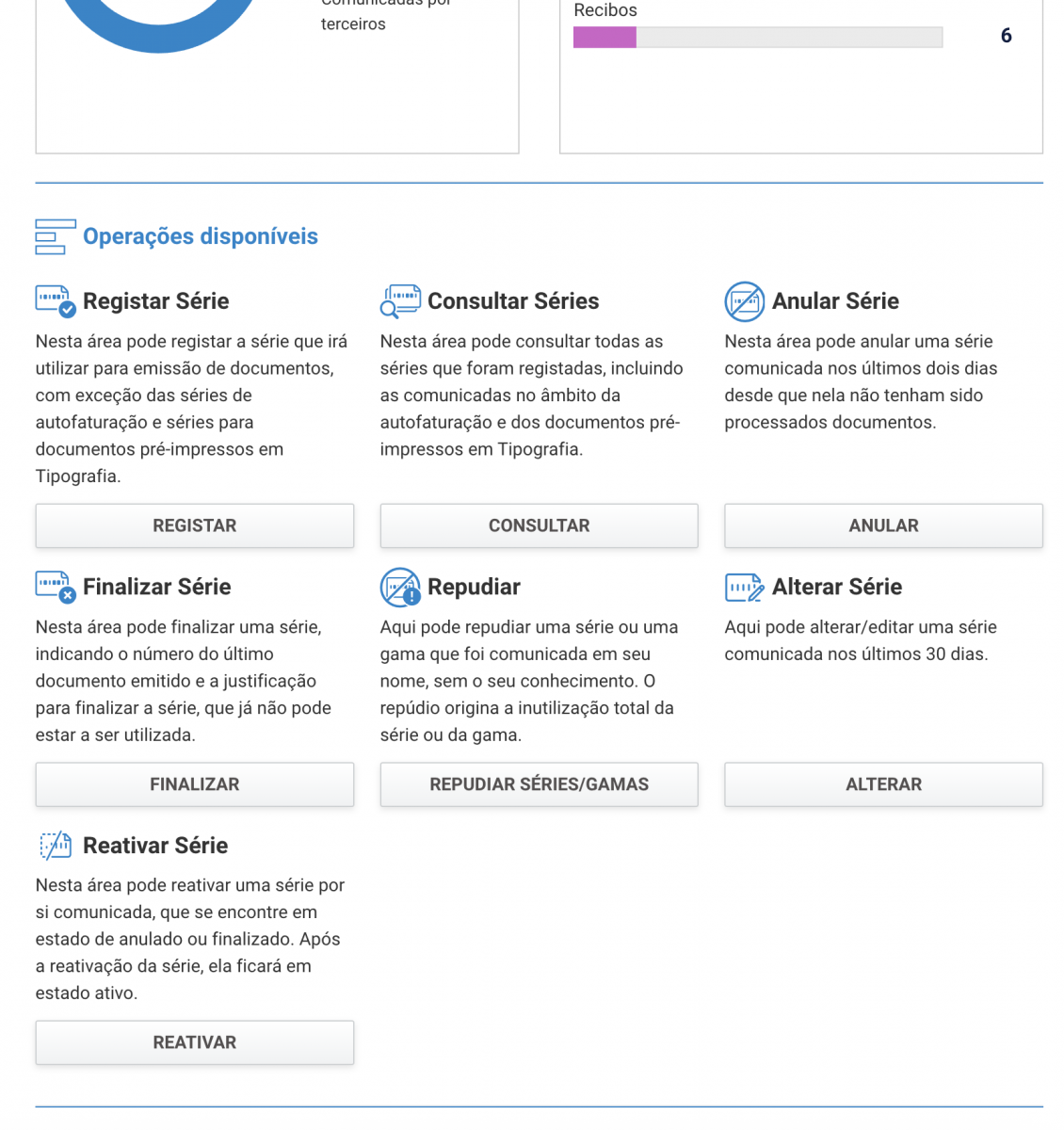
5. From the available operations, select Register Series.
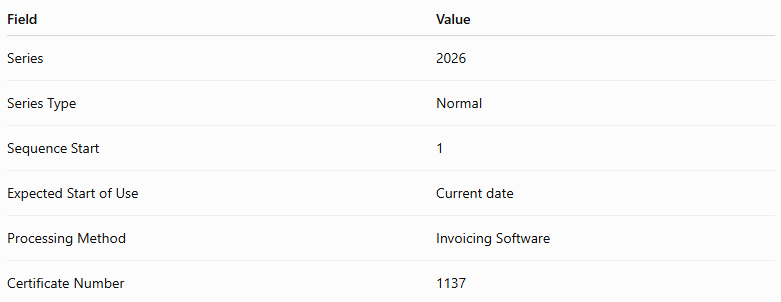
6. Complete the form fields. The following values are the same for every registration:
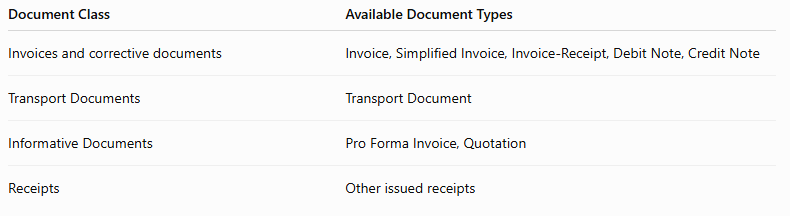
7. Select the desired Document Class and Document Type. These are the only fields that vary between registrations:
8. Submit the registration. The system will generate an 8-character validation code (letters and numbers), beginning with the letter J.
9. Repeat steps 6 to 8 for each document type you need to issue, recording each validation code obtained.
Part B: Enter the codes into weoInvoice
10. Access your weoInvoice account.
11. Click Configuration.
12. Click Series in the side menu.
13. Edit the current year's series (2026) by clicking the series row.
14. Enter the codes obtained from the Portuguese Tax Authority Portal into the fields corresponding to each document type.
Important warning: Carefully verify that each code corresponds to the correct document type before saving. If a code is entered into the wrong field or typed incorrectly, it will not be possible to correct it once documents have been issued using that series.
15. Save the series.
Expected Result: If the process has been completed successfully, all Series Validation Codes (ATCUD) fields for the current year's series will be populated. From that point onward, you will be able to issue invoicing documents, and they will include the ATCUD code as required by the Portuguese Tax Authority.
Frequently Asked Questions
Do I need to repeat this process every year? Yes. The communication of series and the obtaining of ATCUD validation codes are mandatory procedures that must be completed at the beginning of each calendar year, before issuing the first document.
Can I correct a validation code if I entered it incorrectly? If documents have already been issued using the series in question, the codes cannot be corrected. Therefore, it is essential to verify that each code is entered into the correct field before saving the series and starting to issue documents.
What is the difference between the automatic and manual methods? With the automatic method (Exclusive Plus plan), weoInvoice communicates directly with the Portuguese Tax Authority via Webservice and retrieves the validation codes with a single click for each document type.
With the manual method (Business and Exclusive plans), you must access the Portuguese Tax Authority Portal, register the series for each document type individually, and then manually enter the codes into weoInvoice.
Is the certificate number always 1137? Certificate number 1137 corresponds to the certification given to weoInvoice by the Tax Authority. This information is fixed for all users of the platform and should not be changed.
 . This is a system that is constantly evolving and you are an essential piece in this evolution.
