This article explains what Autoinvoicing is and how to configure and issue self-billing invoices in weoInvoice. This feature is available exclusively to users subscribed to the Exclusive Plus plan.
Prerequisites: Before you begin, make sure that:
-
You have the Exclusive Plus plan active on your weoInvoice account.
-
There is a written Autoinvoicing agreement between your company and the supplier in question.
-
You have access to the Portuguese Tax Authority Portal (Portal das Finanças) with your credentials.
What is Autoinvoicing?
Autoinvoicing is a billing method in which the customer issues the invoice on behalf of their supplier, based on a prior agreement between both parties. This type of billing is commonly used when the supplier does not have the administrative structure required to issue invoices containing all the elements required by the Portuguese VAT Code.
For autoinvoicing to be valid, there must be a written agreement between the supplier of the goods or services and the purchaser. In addition, there must be proof that the supplier was informed of the invoice issuance and accepted its contents.
Entities with autoinvoicing agreements are responsible for communicating invoices to the Portuguese Tax Authority through the submission of the SAF-T file.
How to issue the first self-billing invoice and configure the series
1. Access Invoices from your account menu.

2. Click Add.
3. Select the customer corresponding to the supplier for whom you want to issue a self-billing invoice.
4. Enable the Autoinvoicing option and click Add to proceed with issuing the document.
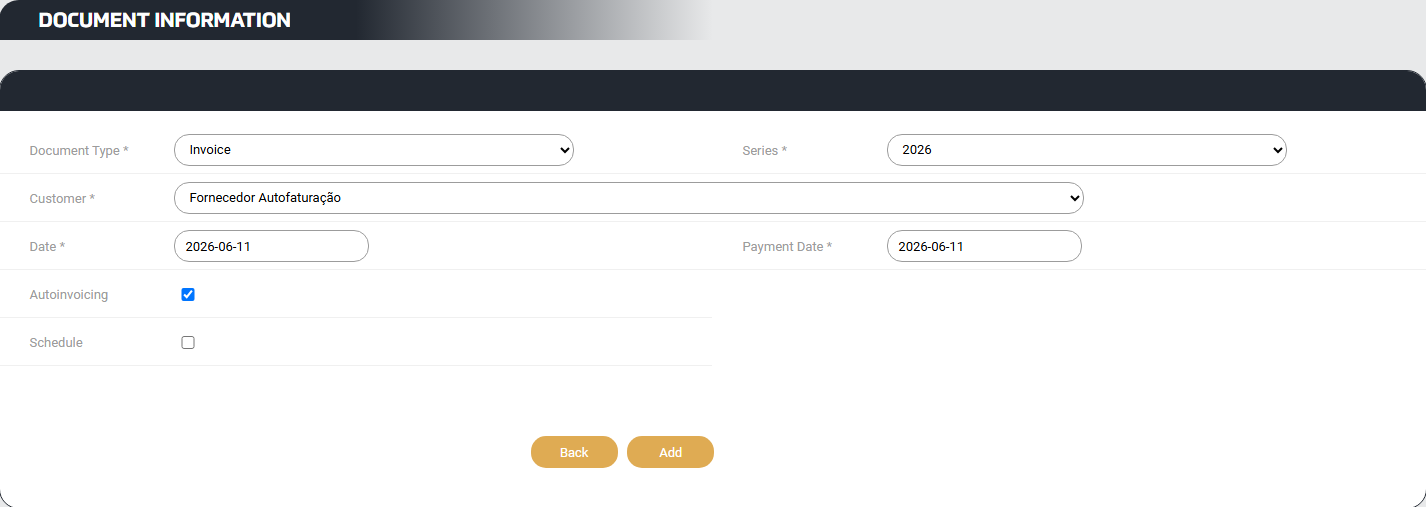
5. Take note of the series name automatically generated by the system. You will need this name to register the series both in the Portuguese Tax Authority Portal and in weoInvoice.
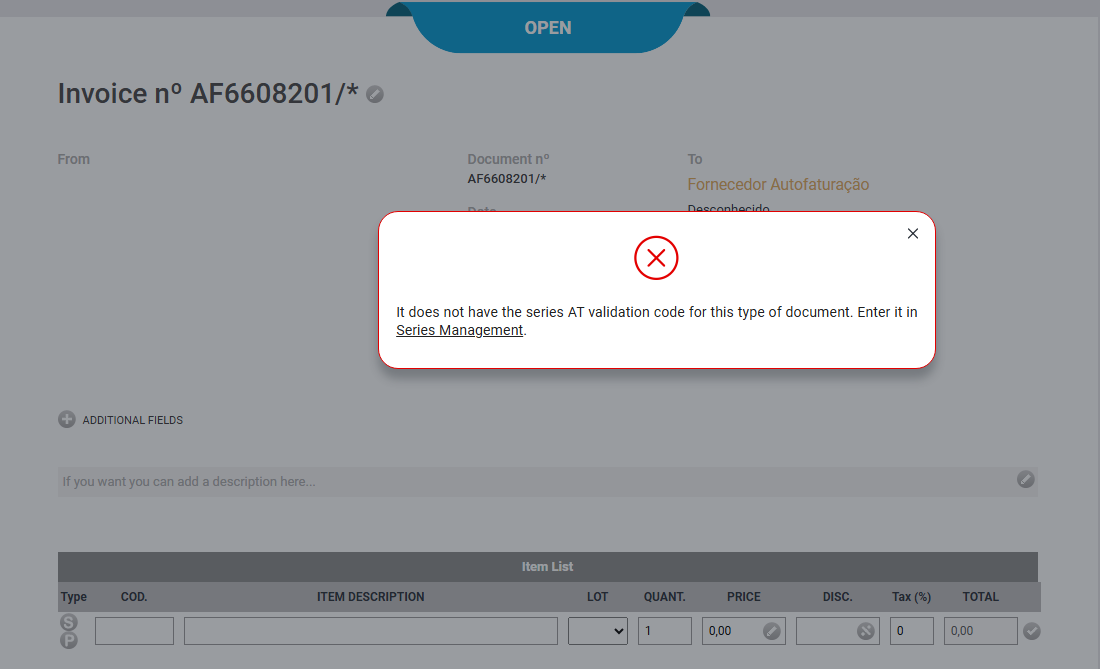
6. Access the Portuguese Tax Authority Portal and register the series using the name provided by the system. Obtain the validation codes for each document type you need to issue.
[screenshot of the Portuguese Tax Authority Portal, series registration section]
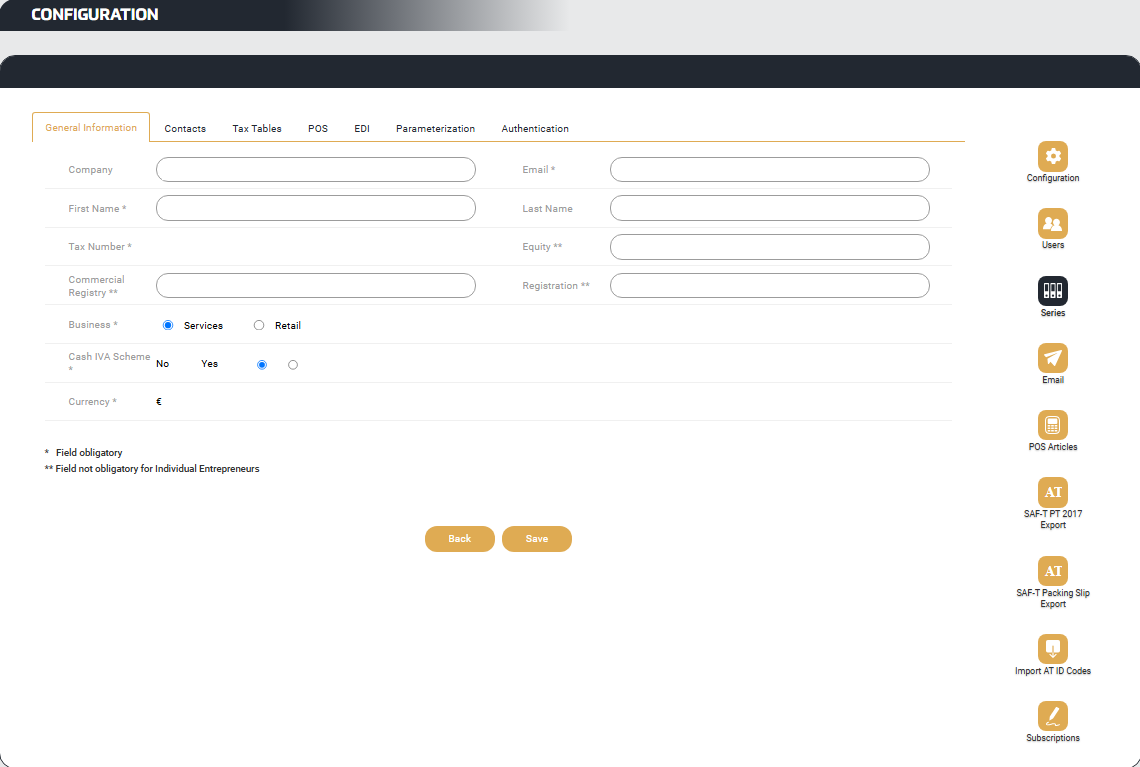
7. Return to weoInvoice and access your account Configuration.
8. Click Series in the side menu.
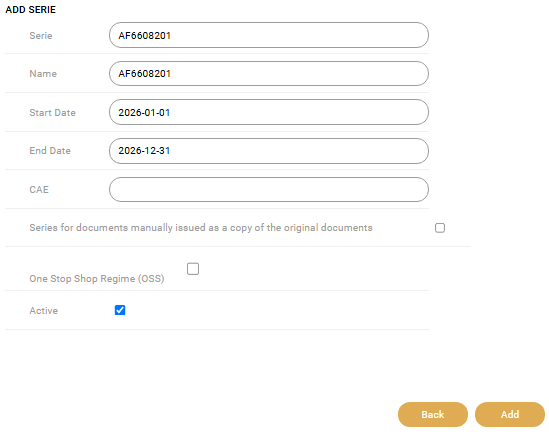
9. Add a new series, assigning it the name obtained in step 5, and activate it.
10. Enter the validation codes obtained from the Portuguese Tax Authority Portal into the corresponding fields of the series you have just created.
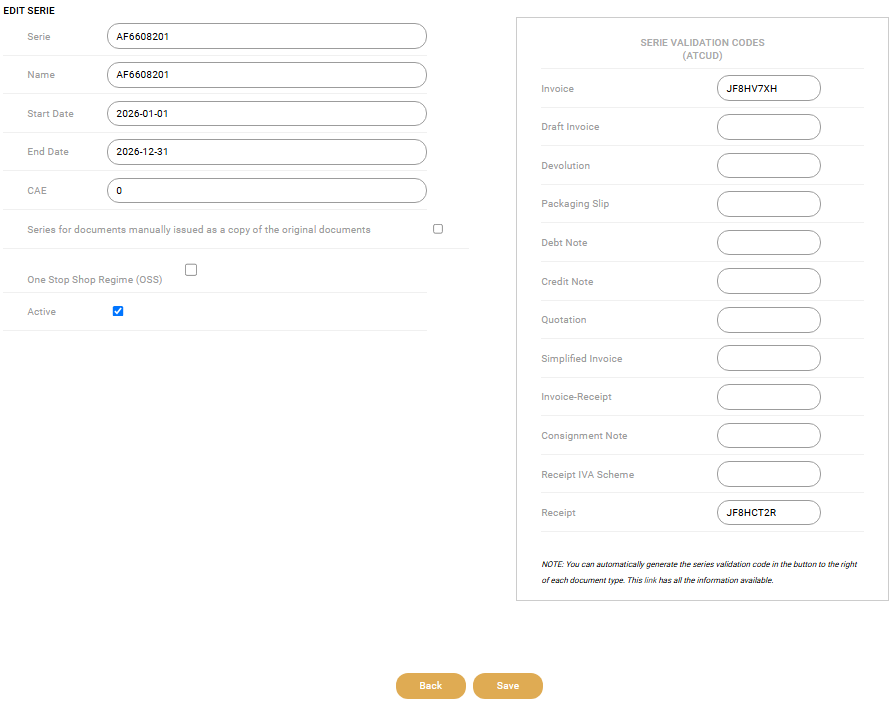
11. Save the series.
How to issue subsequent self-billing invoices (after the initial setup)
Once the series has been configured, the issuing process becomes simpler:
12. Access Invoices and click Add.
13. Select the desired document type.
14. Select the Autoinvoicing series you previously registered.
15. Select the supplier in the Customer field.
16. Click Add to proceed with issuing the document.
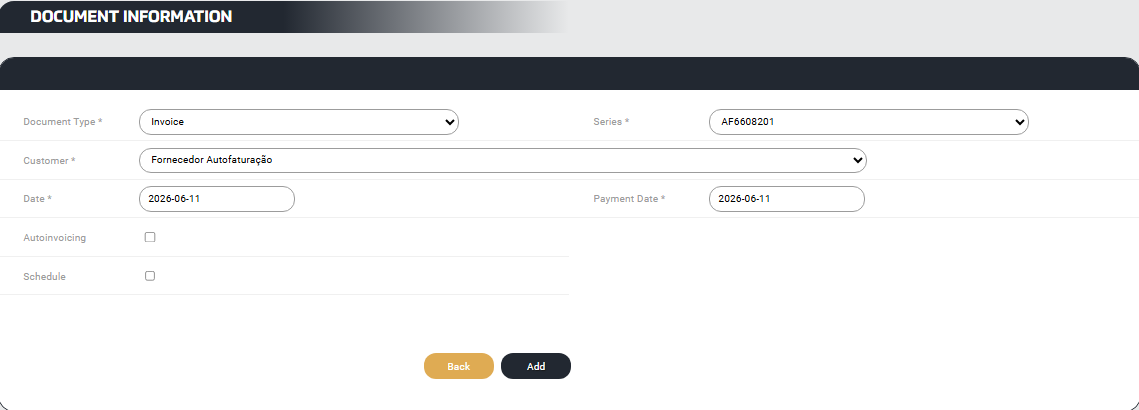
From this point onward, it is no longer necessary to enable the Autoinvoicing option, as the selected series is already associated with this functionality.
Expected result: If the process has been completed successfully, you will see the issued self-billing invoice in the list of documents in your account, with the associated Autoinvoicing series and the supplier details correctly filled in.
Frequently asked questions
Can I issue self-billing invoices on the Business or Exclusive plan? No. Autoinvoicing is available exclusively on the Exclusive Plus plan.
Do I need to register a new series for each supplier? Yes. The self-billing series is specific to each agreement with a supplier, so a separate series must be created for every supplier with whom you have a self-billing agreement.
Who is responsible for communicating self-billing invoices to the Portuguese Tax Authority? The entity issuing the self-billing invoice (i.e., the purchaser) is responsible for communicating the documents to the Portuguese Tax Authority through the SAF-T file.
 . This is a system that is constantly evolving and you are an essential piece in this evolution.
