How to communicate transport documents to the Portuguese Tax Authority in weoInvoice?
This article explains how to communicate transport documents to the Portuguese Tax Authority (AT) in weoInvoice. There are two methods available: manual communication via SAF-T file (available with the Exclusive plan) and automatic communication via Webservice (available with the Exclusive Plus plan). Please refer to the method that applies to your subscription plan.
Method 1: Manual communication via SAF-T file (Exclusive plan)
Prerequisites
Before you begin, make sure that:
-
You have the Exclusive plan active on your weoInvoice account.
-
You have access to the Portuguese Tax Authority Portal and the e-Fatura portal with your credentials.
Part A: Issue the transport document in weoInvoice
1. Access Invoices from your account menu.
2. Click Add and select the Packaging Slip document type.
3. Complete the usual document fields (customer, series, issue date).
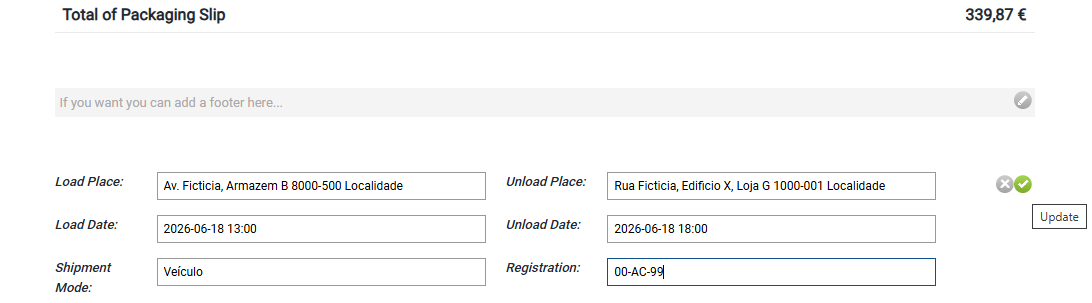
4. Complete the following transport fields:
-
Loading Location and Unloading Location
-
Loading Date and Unloading Date
-
Shipping Method
-
Registration Number
Important note: The loading and unloading dates and times cannot be earlier than the date and time when the document is being issued. If any of these fields are not correctly completed, the document will not be valid.
5. Complete the issuance of the transport document, by closing the document.
Part B: Export and communicate the SAF-T file
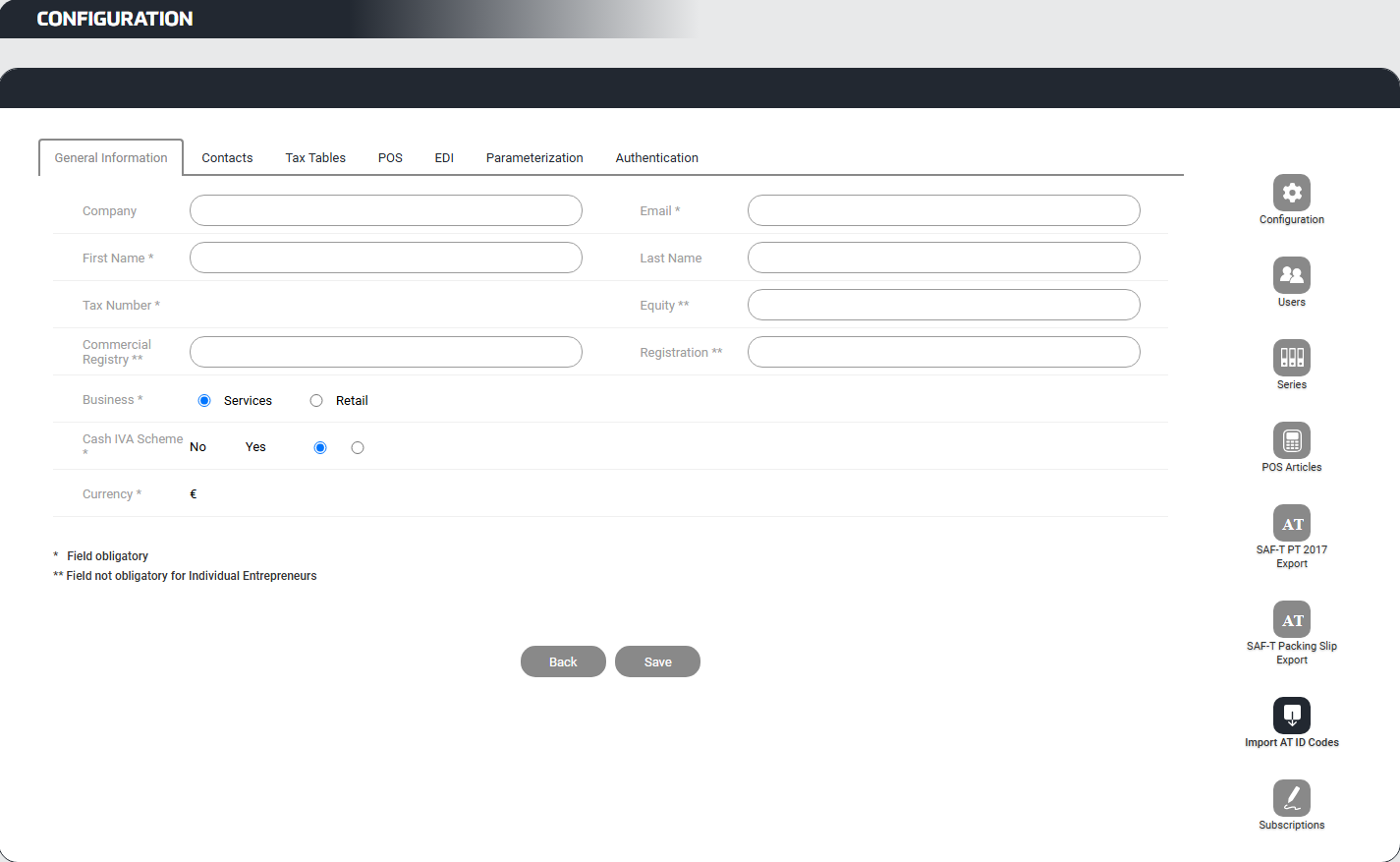
6. Go to your account Settings in weoInvoice.
7. Click Packaging Slipt SAF-T Export in the side menu.
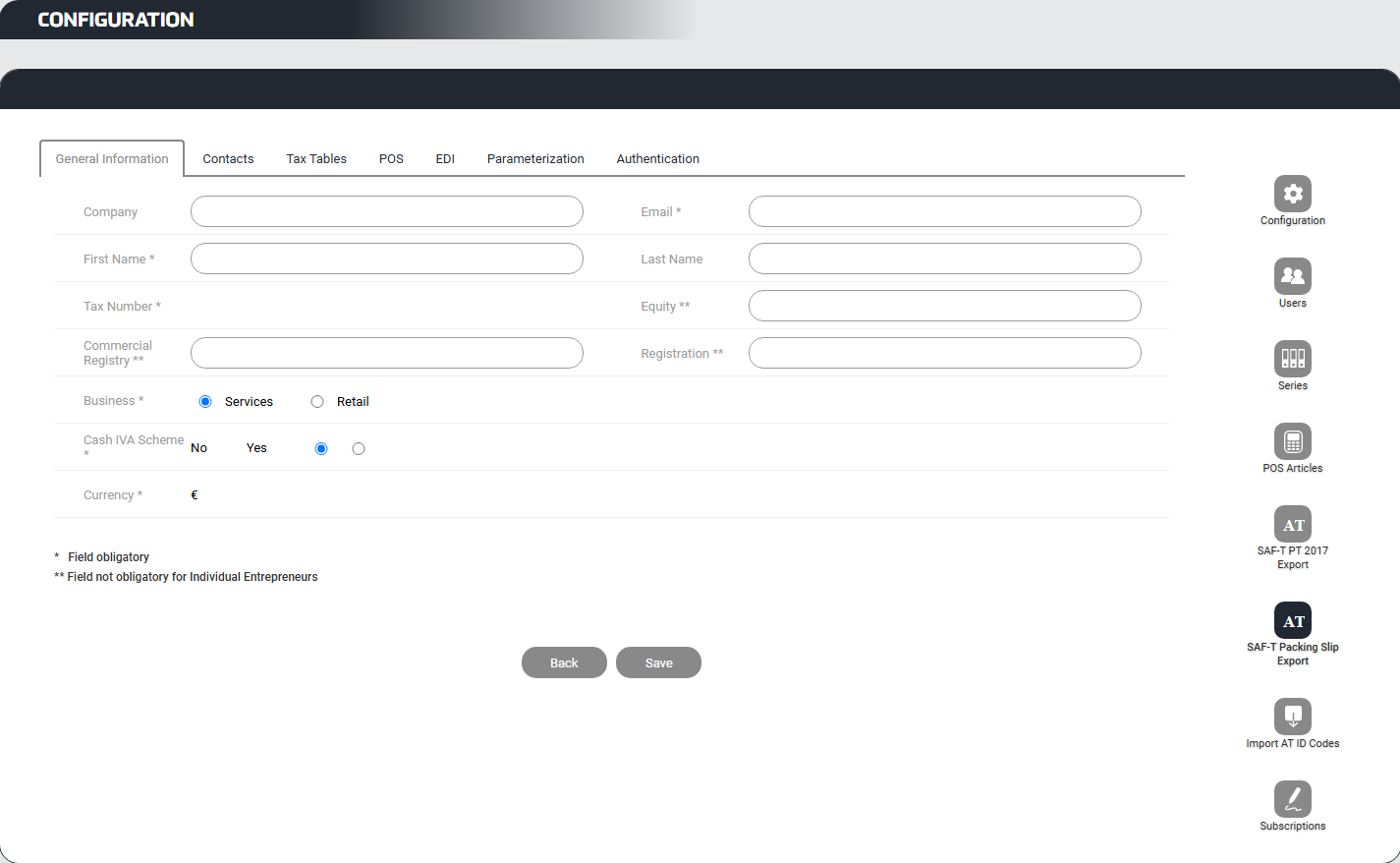
8. Select the desired year and month to obtain the XML file containing the issued transport documents.
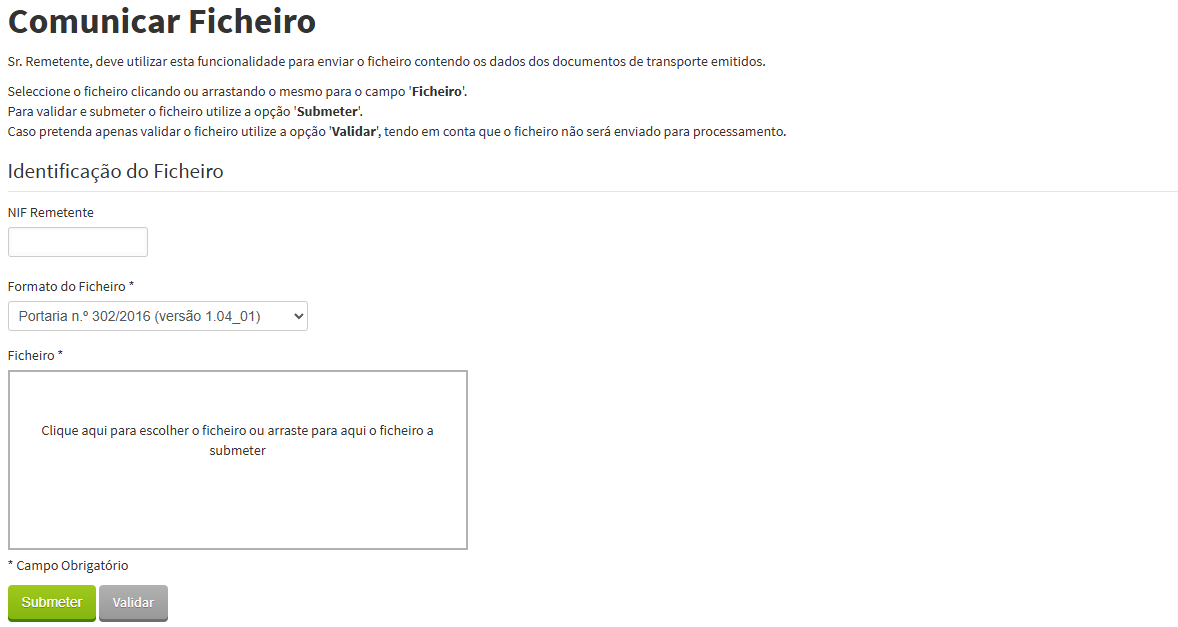
9. Access the e-Fatura portal and go to the Transport Documents section.
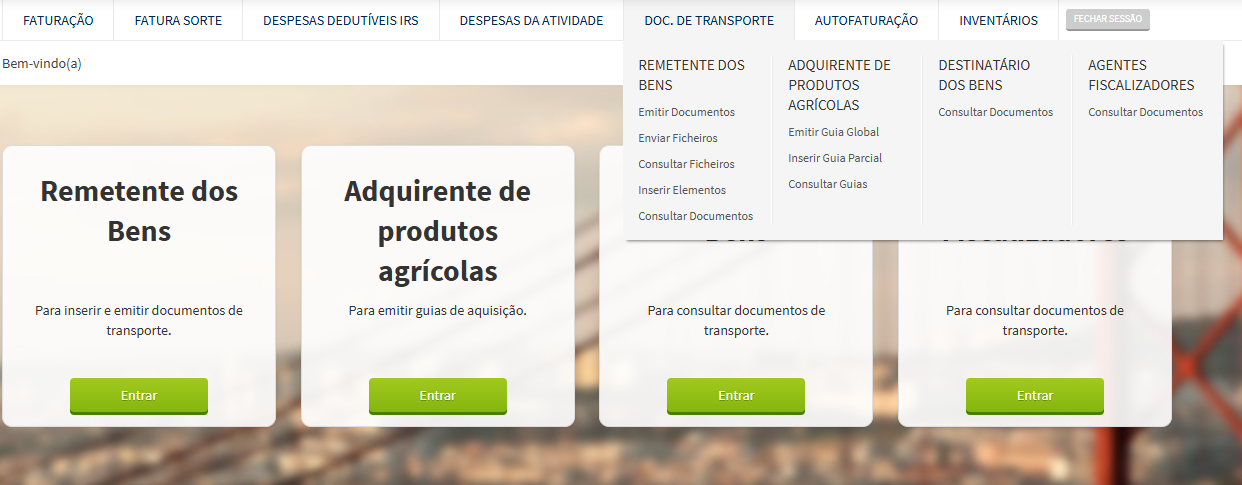
10. Select the Goods Sender option and click Upload Files.
11. Upload the XML file exported from weoInvoice and click Submit.
Part C: Import the identification codes into weoInvoice
12. Once the Portuguese Tax Authority confirms receipt of the file, export the file containing the identification codes for the transport documents from the e-Fatura portal.
13. Return to weoInvoice and access your account Settings.
14. Click Import AT ID Codes in the side menu.
15. Select the file obtained from the e-Fatura portal and complete the import.
Expected result
After importing the codes, the transport documents will contain the AT identification code, thereby validating the transportation of goods. You will be able to print the documents with this information from the Invoices menu.
Method 2: Automatic communication via Webservice (Exclusive Plus plan)
Prerequisites
Before you begin, make sure that:
-
You have the Exclusive Plus plan active on your weoInvoice account.
-
You have access to the Portuguese Tax Authority Portal with your credentials.
Part A: Create the Webservice user in the Portuguese Tax Authority Portal
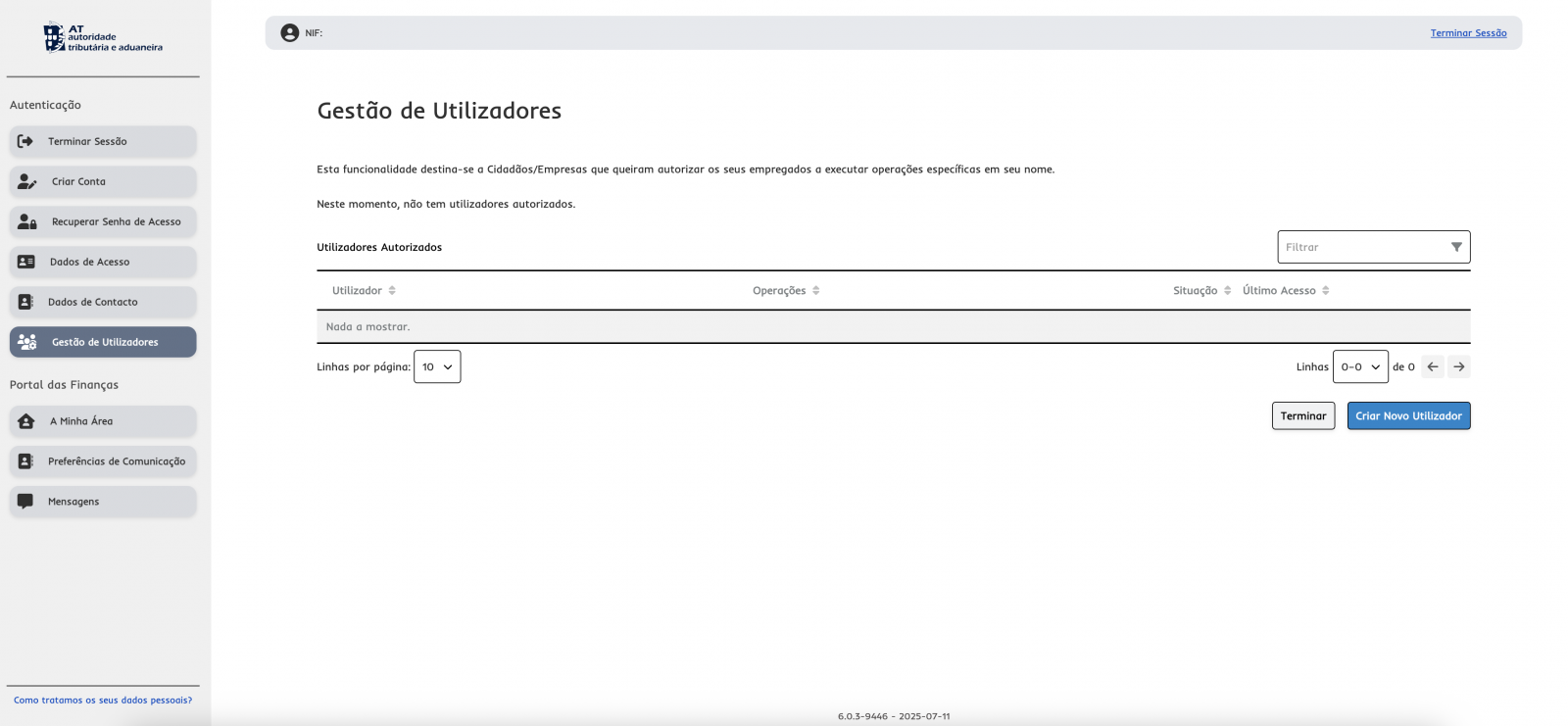
1. Access the Portuguese Tax Authority Portal and log in with your credentials.
3. Click CREATE A NEW USER.
4. Fill in the required fields: Username, Name, Password, and Email.
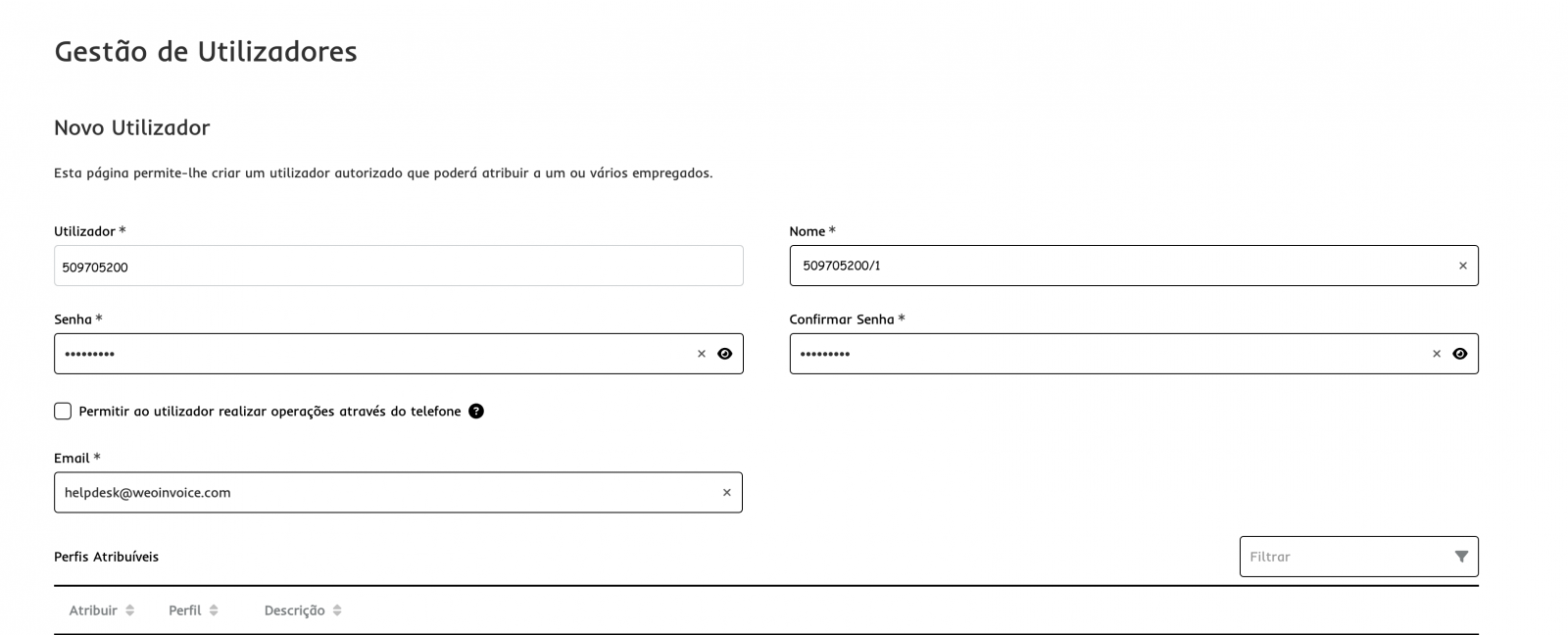
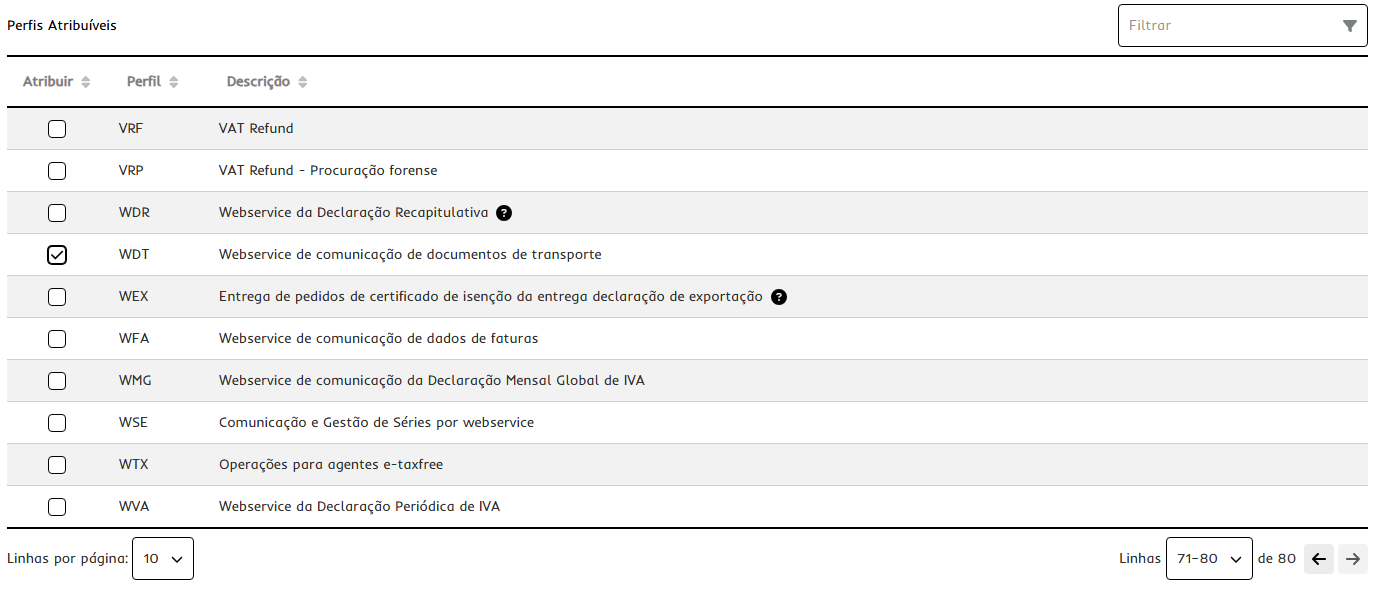
5. In the Assignable Profiles section, select the WDT profile (Transport Documents Communication Webservice).
6. Click CREATE USER.
Part B: Configure automatic communication in weoInvoice
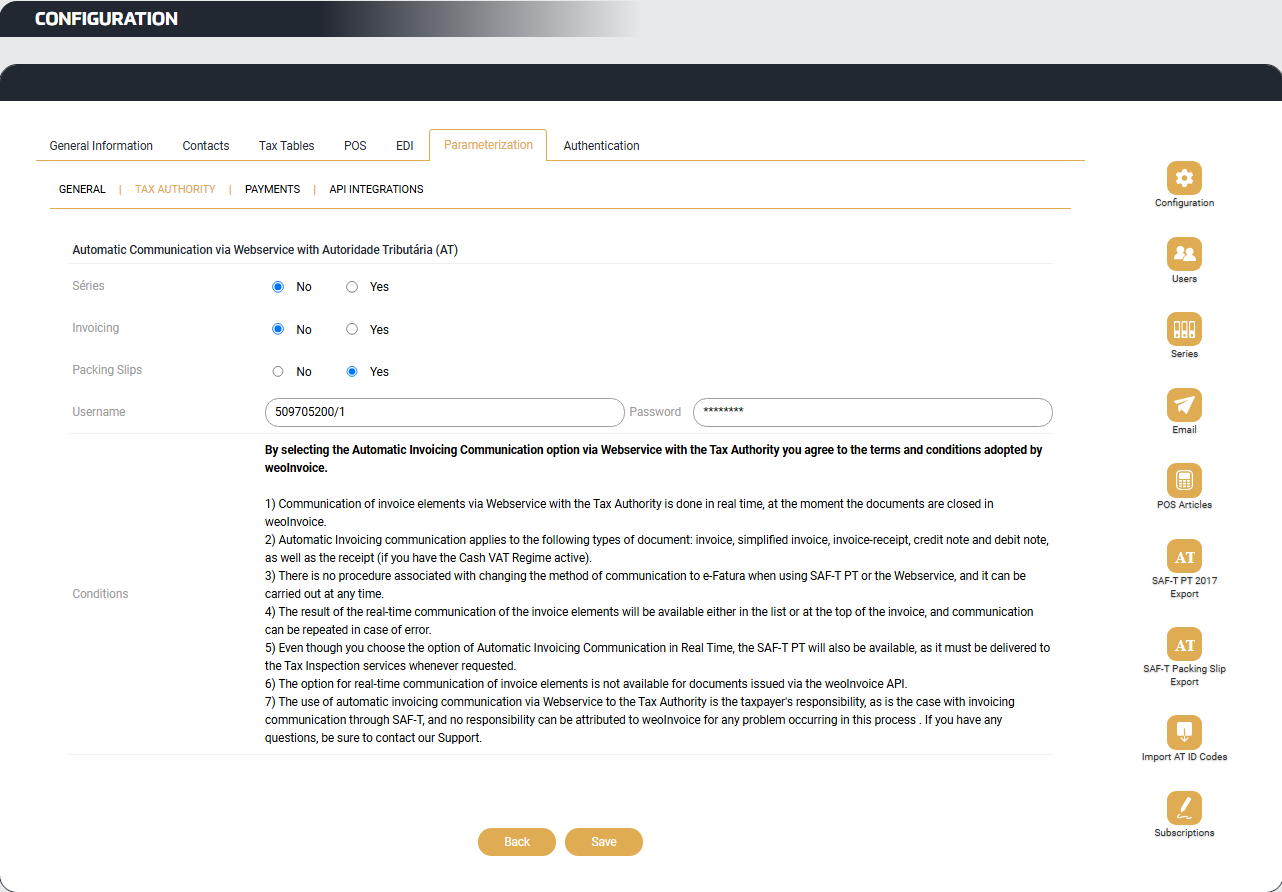
7. In weoInvoice, go to Settings → Parameterization→ Tax Authority.
8. In the Automatic Communication via Webservice with Tax Authority (AT) section, enable the Packaging Slips option by selecting Yes.
9. Enter the username and password you created in the Portuguese Tax Authority Portal in the previous steps.
Expected result
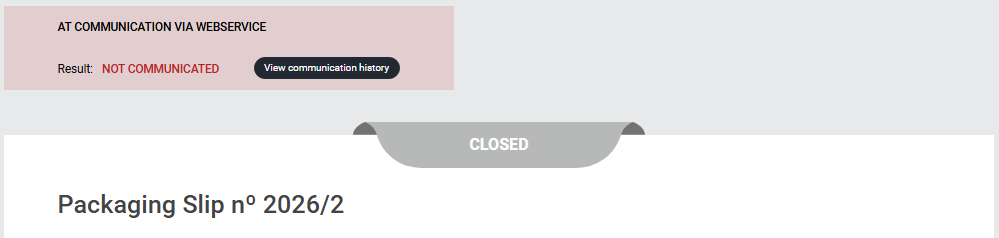
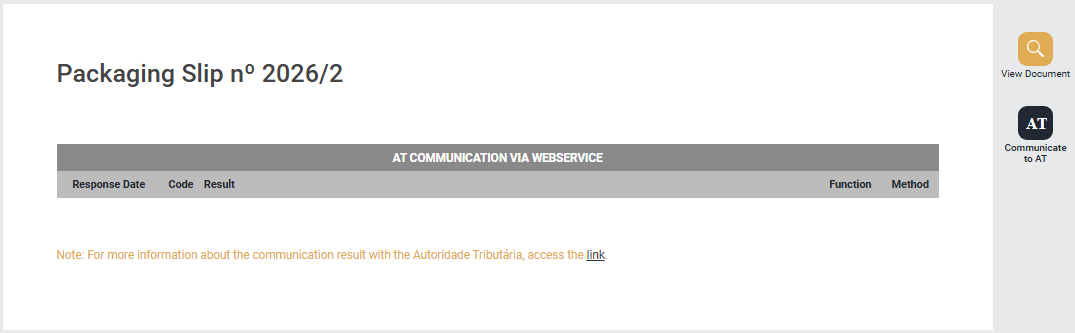
From this point onward, the transport documents issued in weoInvoice will be communicated automatically to the Portuguese Tax Authority. In the Invoices list, you will see an AT Communication column displaying the status of each document (Success or Error). In addition, the communication result for each document will be displayed at the top of the document page.
What to do in case of a communication error
If the communication status shows Error, you should:
1. Open the affected document.
2. Click View communication history to see the reason for the error.
3. Correct the issue indicated in the document.
4. Click Communicate to AT so that weoInvoice can make a new communication attempt via Webservice.
Frequently asked questions
What is the difference between the automatic and manual methods? With the automatic method (Exclusive Plus plan), weoInvoice communicates transport documents directly to the Portuguese Tax Authority through Webservice and immediately retrieves the identification codes, without requiring any file exports or imports.
With the manual method (Exclusive plan), the process must be carried out manually between weoInvoice and the Tax Authority through the e-Fatura portal.
Is there a deadline for communicating transport documents to the Portuguese Tax Authority? According to the Portuguese Tax Authority, transport documents issued electronically must be communicated before the start of the transportation.
Can I communicate transport documents on the Business (free) plan? The Transport Document document type is available on the Business plan, but its communication is performed through the standard SAF-T file, which does not result in the assignment of an identification code.
The Portuguese Tax Authority states that these codes are mandatory on transport documents, particularly for VAT-registered businesses with a turnover exceeding €100,000 in the previous year.
 . This is a system that is constantly evolving and you are an essential piece in this evolution.
