This article explains how to configure and use the email document delivery feature directly from weoInvoice, without having to download files and send them manually. This feature is available exclusively with the Exclusive Plus plan.
Prerequisites
Before you begin, make sure that:
-
You have the Exclusive Plus plan active on your weoInvoice account.
-
If you want to use your own email server (instead of the weoInvoice server), have your SMTP details ready: server address, port, username, and password.
Part A: Configure the email server
1. Go to Configuration from your weoInvoice account menu.
2. Click Email in the side menu.
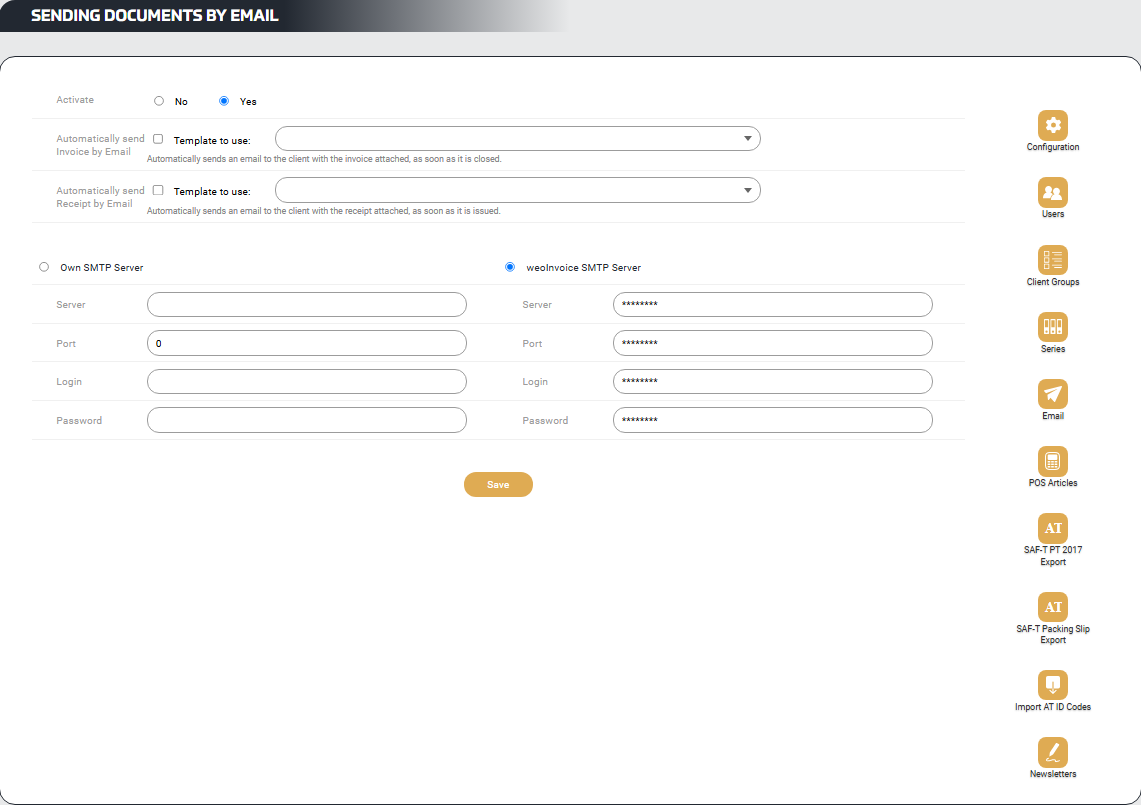
3. In the Sending Documents by Email section, select Yes to enable the feature.
4. Choose the outgoing mail server:
-
weoInvoice SMTP Server - The settings are already configured, so no additional information is required. This is the quickest option.
-
Custom SMTP Server - Enter the following details for your own email server: Server, Port, Username and Password.
5. Click Save.
Part B: Create email templates
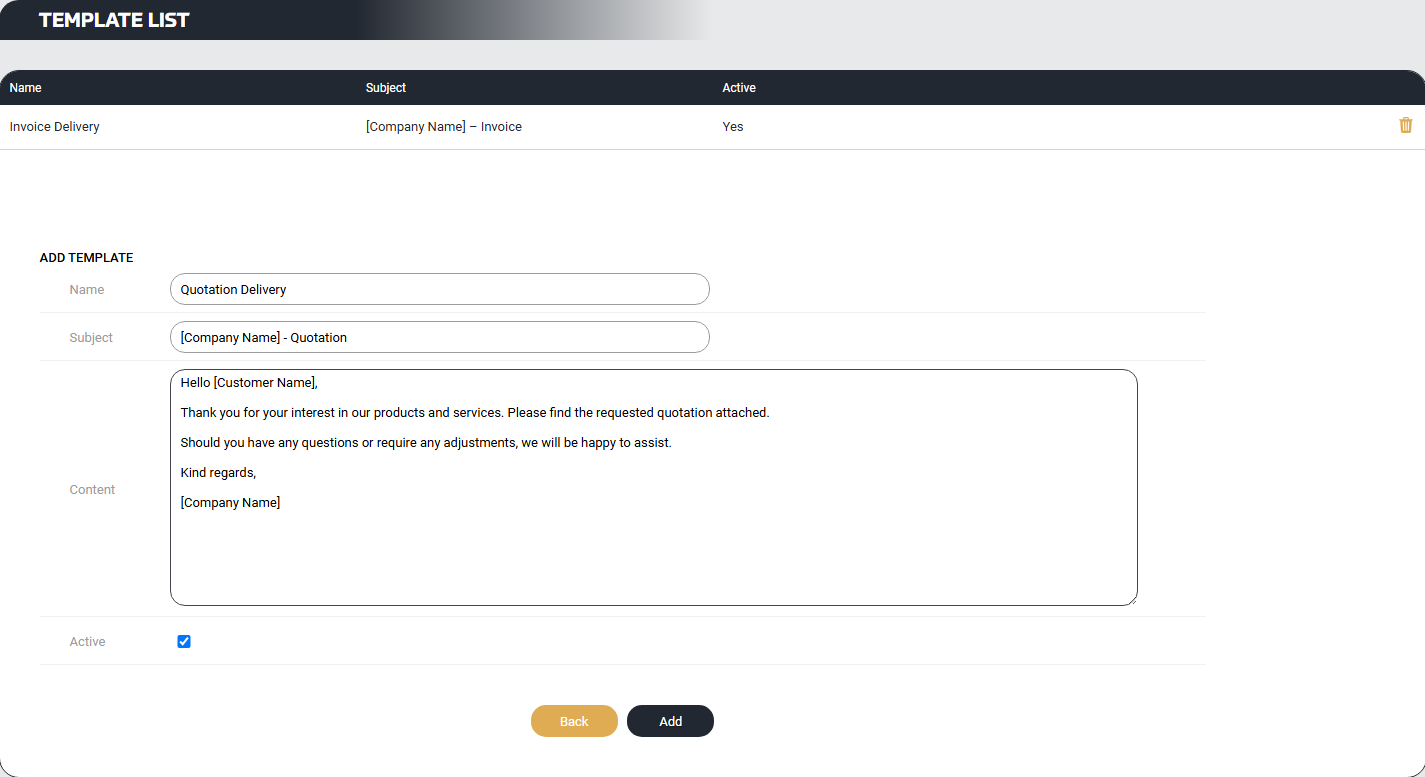
6. On the same page, under the Template List section, click Add.
7. Complete the template fields:
-
Name: A descriptive name for the template (for example: Invoice Delivery)
-
Subject: The subject line that will appear in your customer's email (for example: [Company Name] – Invoice)
-
Content: The body of the email your customer will receive
-
Active: Enable the template
8. Click Add.
9. Repeat steps 6 to 8 for each type of document you wish to send (for example, one template for invoices, another for quotations, and another for credit notes).
Tip: You can create different templates depending on the document type. For example, the tone of an email accompanying a quotation may differ from that of an invoice.
Below are examples for the most common templates.
Suggested invoice email template
Hello [Customer Name],
Please find attached the invoice relating to the services/products provided.
If you have any questions, please do not hesitate to contact us.
Kind regards,
[Company Name]
Suggested quotation email template
Hello [Customer Name],
Thank you for your interest in our products and services. Please find the requested quotation attached.
Should you have any questions or require any adjustments, we will be happy to assist.
Kind regards,
[Company Name]
Part C: Send a document by email
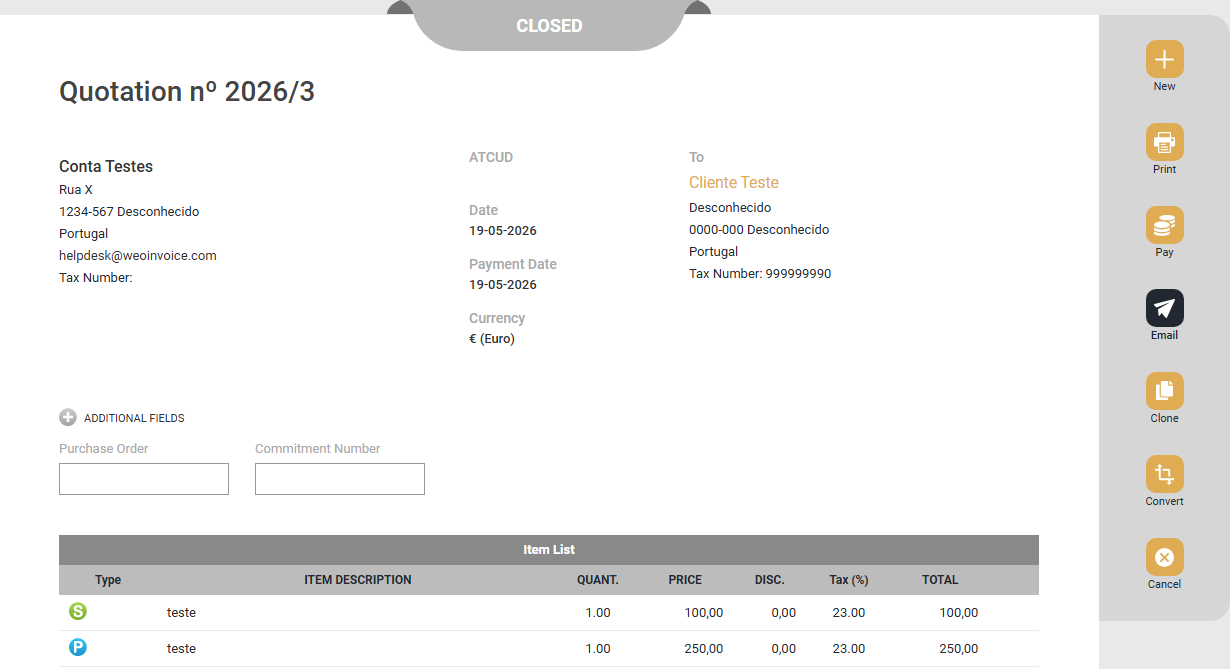
10. Go to Invoices and open the document you want to send. The document must be in the Closed (issued) status.
11. Click the Email button in the document's right-hand side menu.
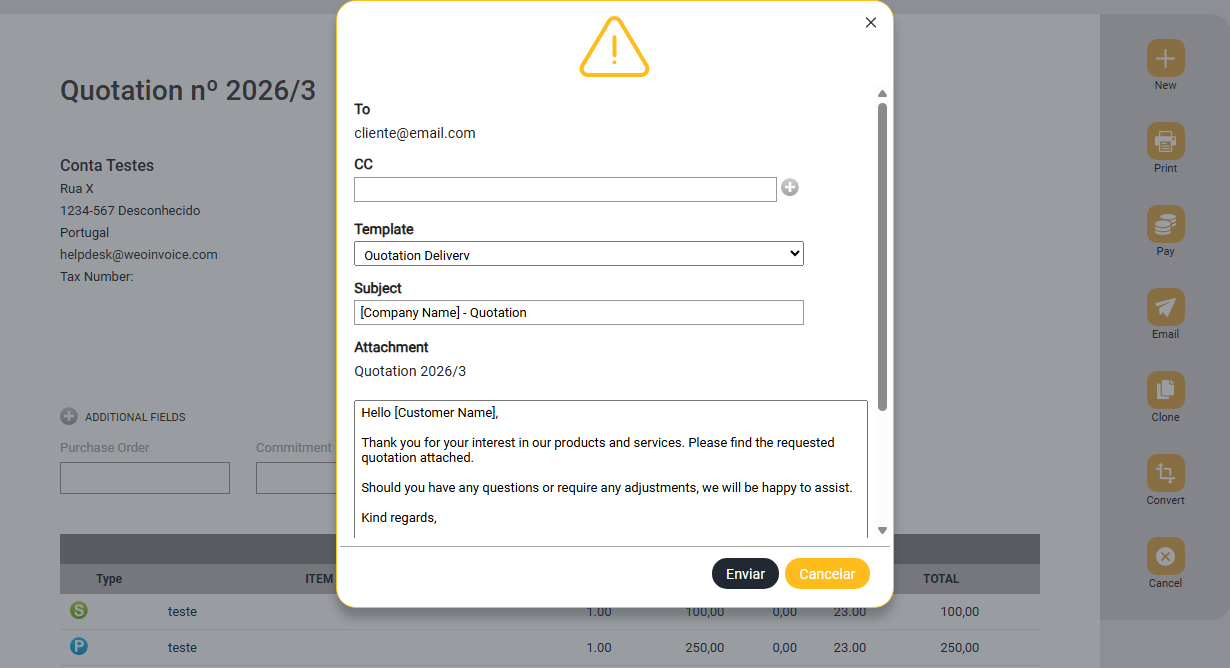
12. In the email window, review the following fields:
-
To: The customer's email address (automatically filled from the customer record)
-
CC: Add a copy recipient if required (yours, for example)
-
Template: Select the desired email template
-
Subject: Review or edit the subject line
-
Content: Review or edit the email body before sending
13. Click Send.
Expected Result - Once sent, your customer will receive an email with the selected document attached in PDF format.
Frequently Asked Questions
Can I send documents by email with the Business or Exclusive plans? No. Sending documents by email directly from weoInvoice is available exclusively with the Exclusive Plus plan.
Can I edit the email content before sending? Yes. After selecting a template, you can edit both the subject and the content before clicking Send. These changes apply only to that specific email and do not modify the original template.
In what format is the document sent? The document is sent as a PDF attachment, the same format used when printing documents, and is included as an attachment in the email received by the customer.
 . This is a system that is constantly evolving and you are an essential piece in this evolution.
